Note: These steps are applicable whether you are editing an existing page or creating a new one.
Adding a content bundle
- In the Paragraphs Bottom in the Bottom Content region, click the + Add button and select Content Bundle from the Add Paragraph modal window:

- If multiple paragraphs already exist in the region, you can insert a new paragraph in the location of your choosing by clicking the appropriate + Add button.
- Add text to the required Heading field; this text will show above the four items added to the bundle, and when editing the page, including when the paragraph is in a collapsed state.
- Add up to four nodes to the Content fields; these fields will present you with a list of items from which to select as you start typing the title of the node you wish to add. Published nodes of the type Basic page, News article - Imported and News article - Local can be selected.
- If this bundle will be tracked in Google analytics, enter the name of the campaign in the optional Campaign field.
- Click Save at the top of the page to preserve the Content Bundle paragraph on the page.
Removing a content bundle
- Assuming you are in the editing user interface, locate the content bundle that you wish to remove.
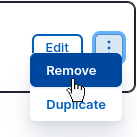
- Click the kebab icon ⋮ (vertical ellipsis) to the right of the paragraph name and select Remove:
- Save the page to commit the change.